
Install Issues on PC
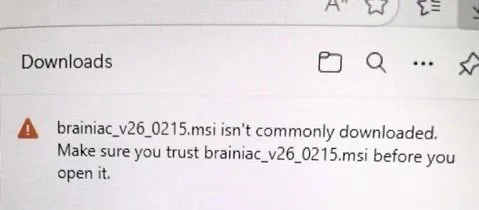
Isn’t Commonly Downloaded Warning
New releases of code downloaded on the Microsoft Edge Browser will have this warning since it has not been downloaded enough times to build a reputation.
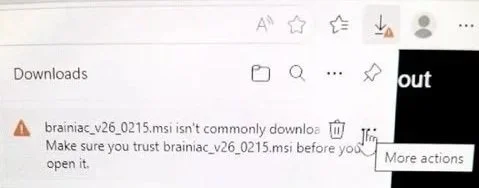
Hover the mouse over the downloaded file and click the “…” button which will appear. Then click the “More actions” button.
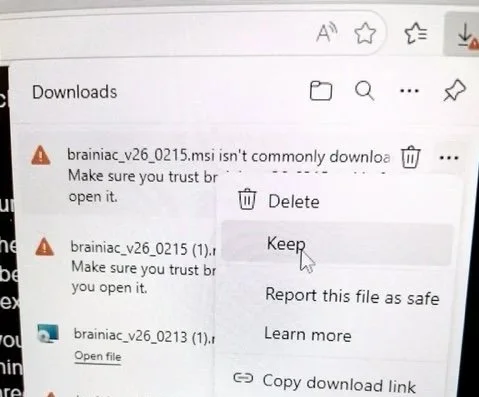
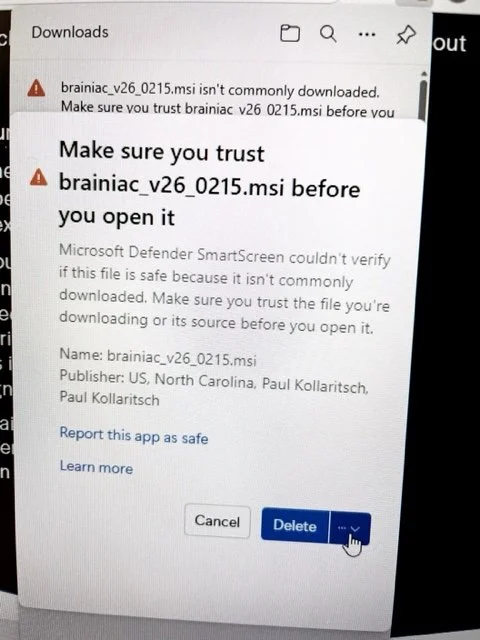
Click “Keep”.
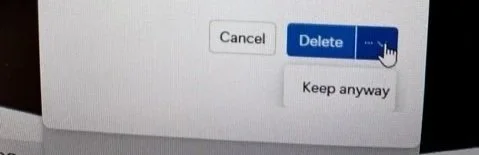
Click the “v …” button.
Click “Keep anyway”.
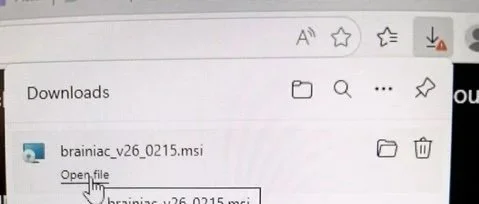
The downloaded file will now show the correct install name. Click “Open file”.
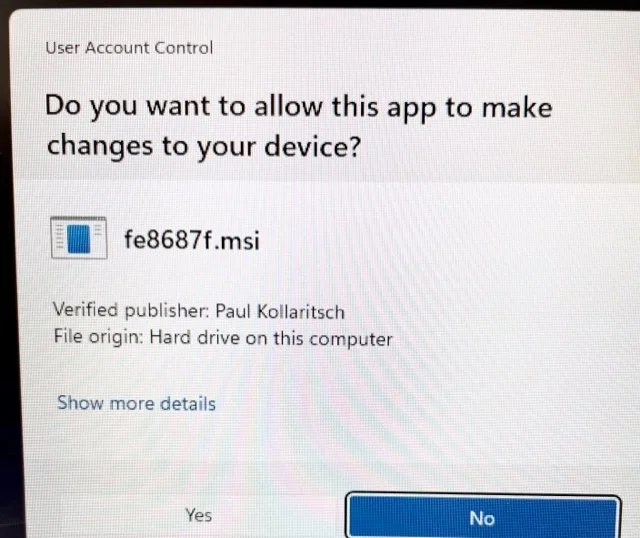
Not sure why fe8687f.msi is shown rather than brainiac_v26_0215.msi, but you can check the signed code certificate by clicking “Show more details”. Click “Yes” to install Brainiac.
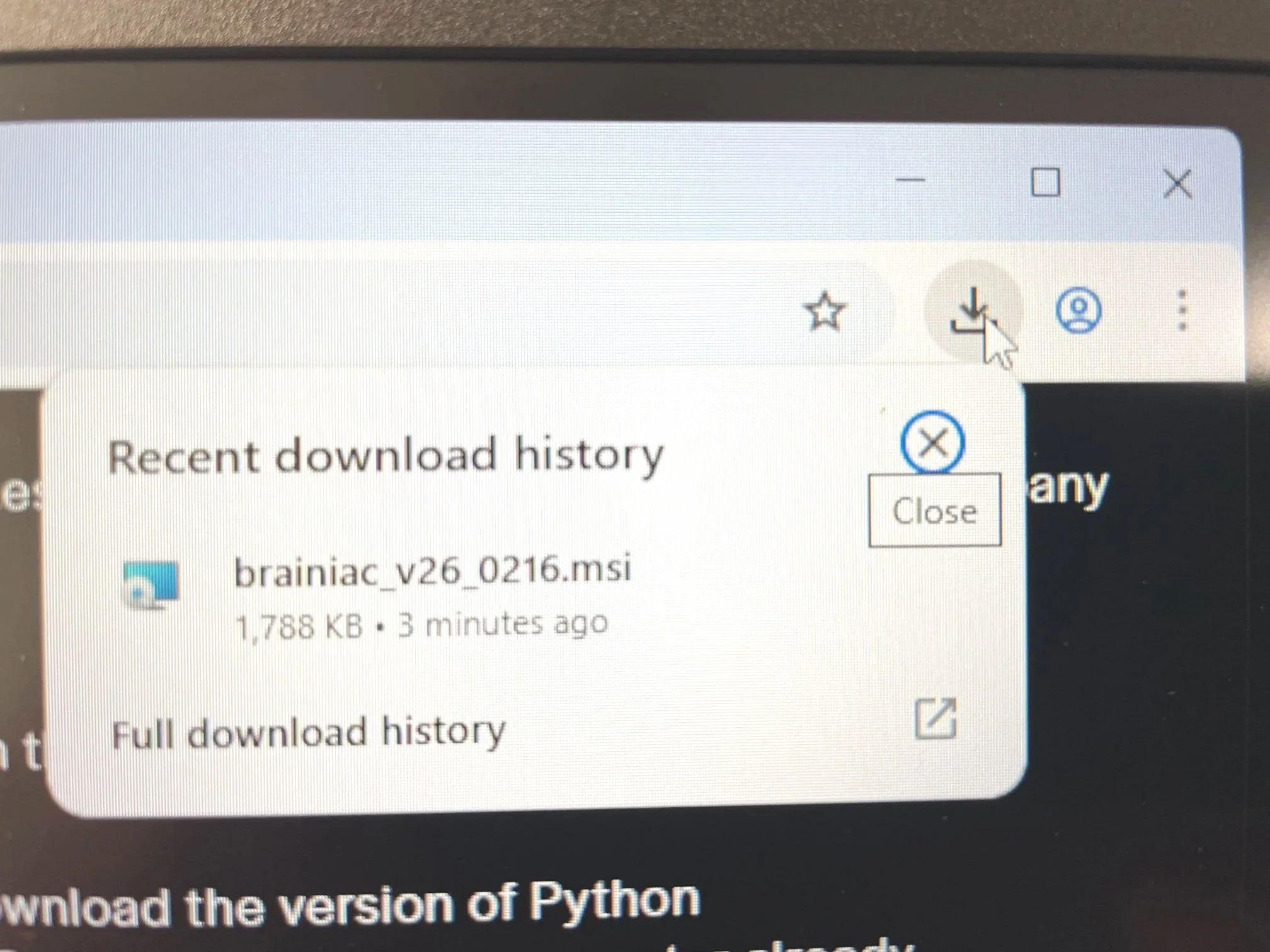
Download Warning with Non-Edge Browsers
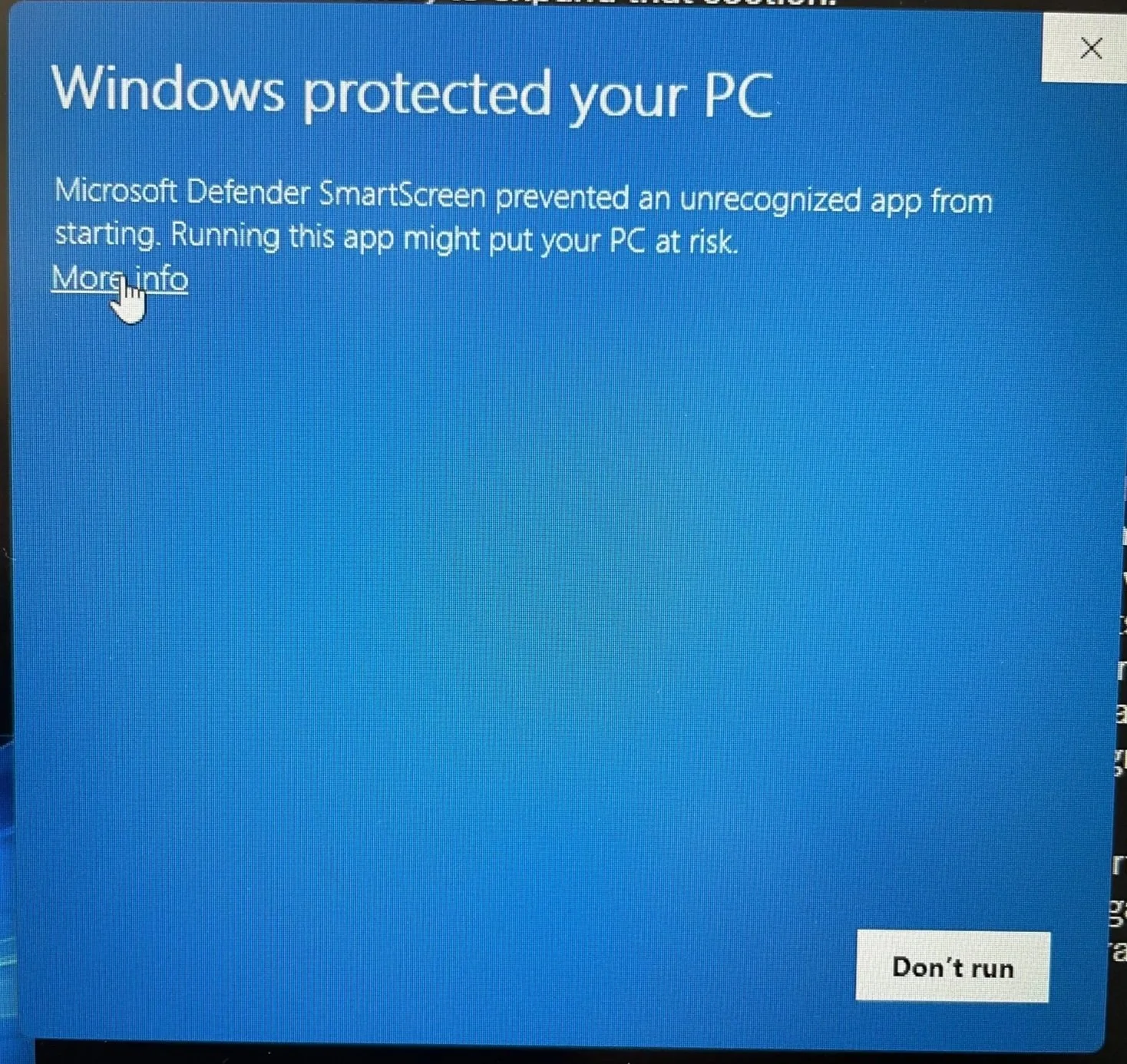
When downloading the same file using Chrome, everything looks fine until you click on the file to install.
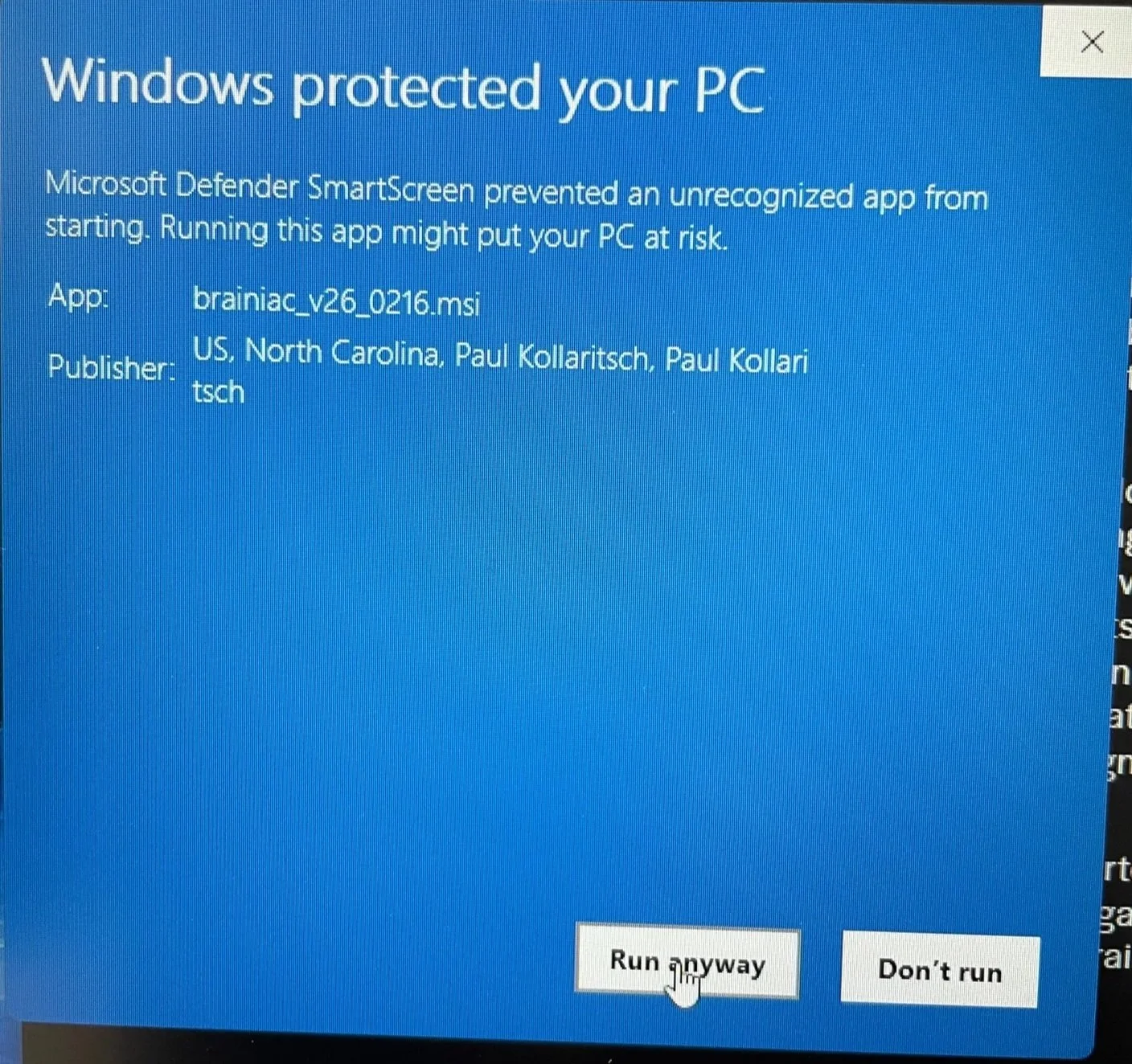
By clicking “More info”….
… the Publisher’s signature is displayed. Click “Run anyway” to run the Brainiac installer.
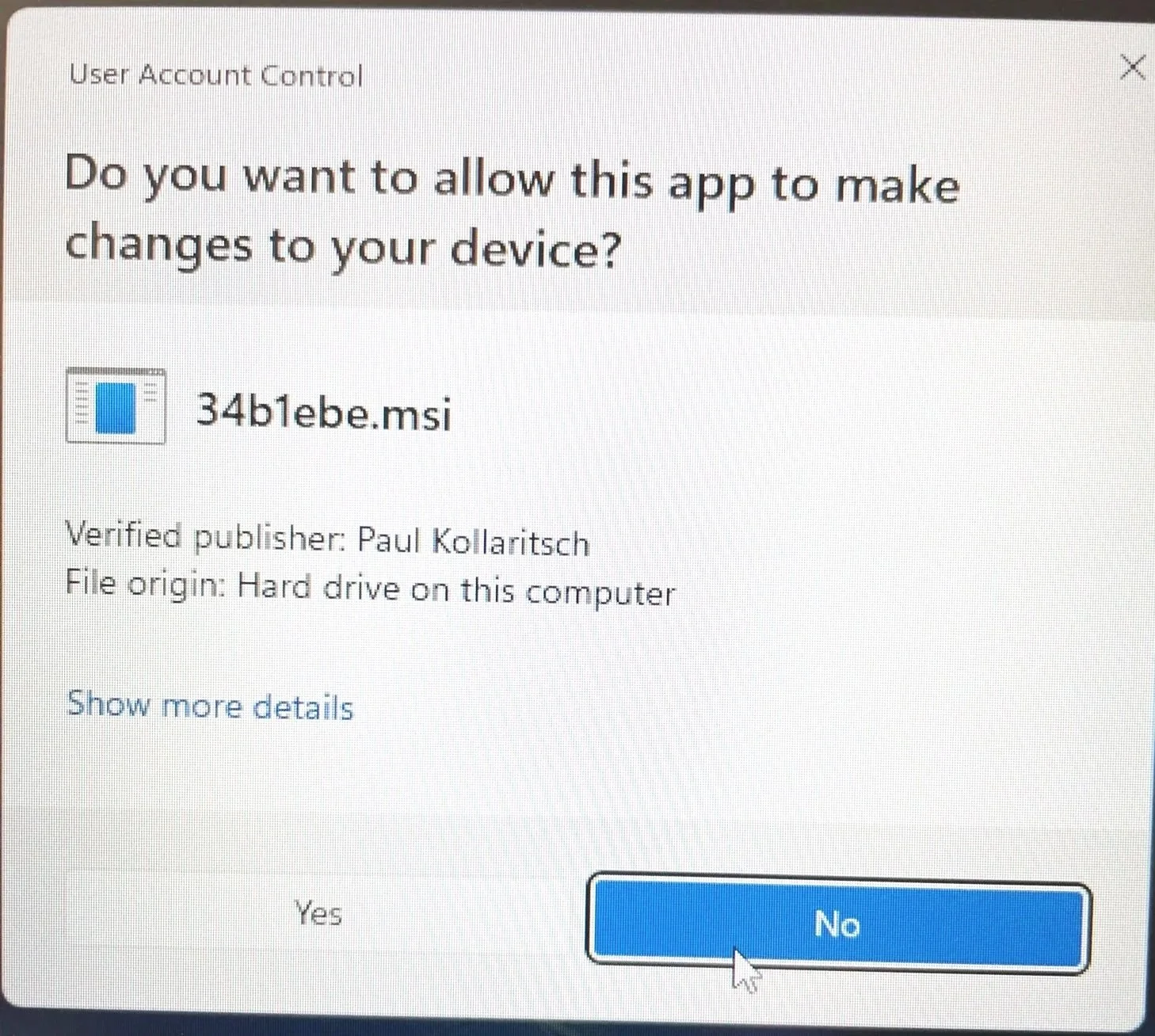
Not sure why 34b1ebe.msi is shown rather than brainiac_v26_0215.msi, but you can check the signed code certificate by clicking “Show more details”. Click “Yes” to install Brainiac.
Download file renamed “Unconfirmed”
Sometimes in the Edge Browser’s Downloads file list, the file will be renamed to something like “Unconfirmed12345.crdownload” if it is a recently released file. Here the procedure to force the install (Windows will still check that the installer is signed with an up-to-date certificate before allowing it to run).
In the Edge Browser’s Downloads file list:
Hover over that file, and three dots will appear.
Click the three dots
Click “Keep”
Click Keep button (right-most button)
Open the file to install Brainiac (Windows will still check that the installer is signed with an up-to-date certificate before allowing it to run)